
A link in bio for coaches: bookings and offers on one page
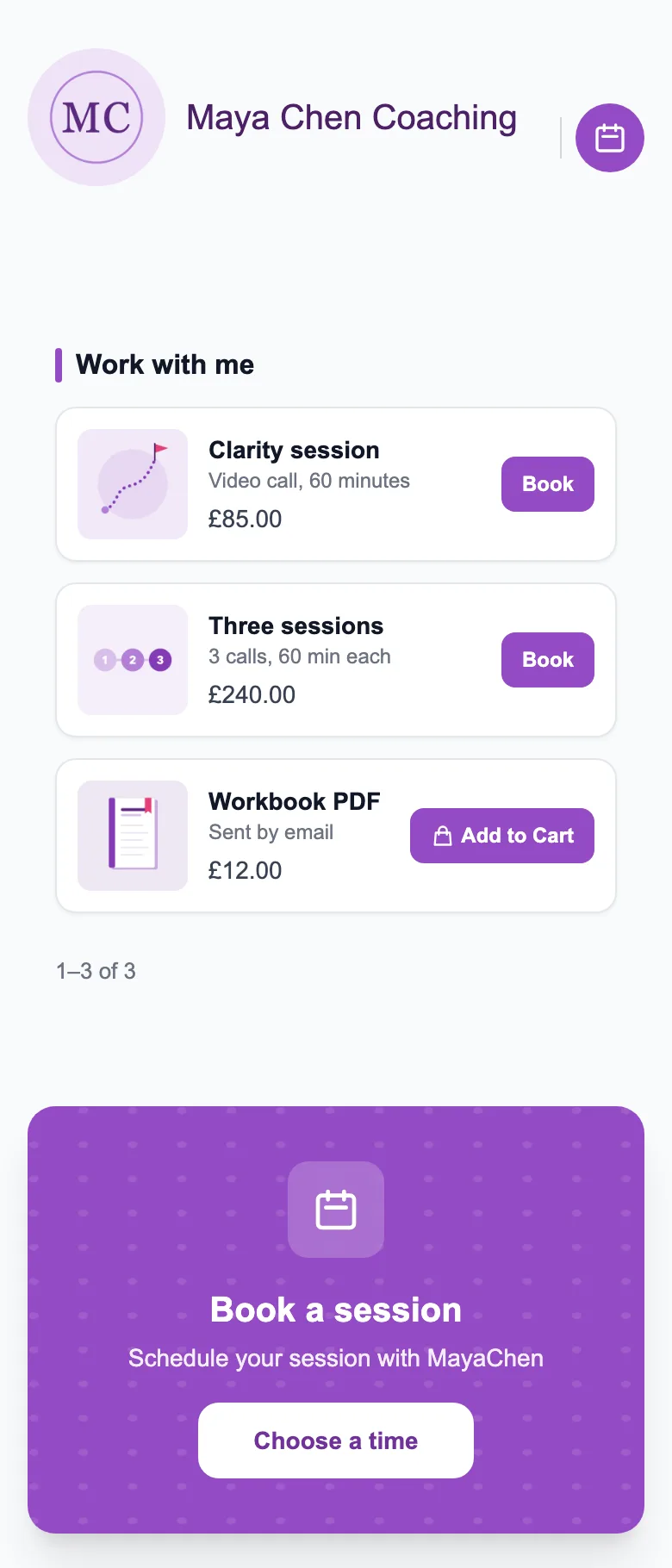
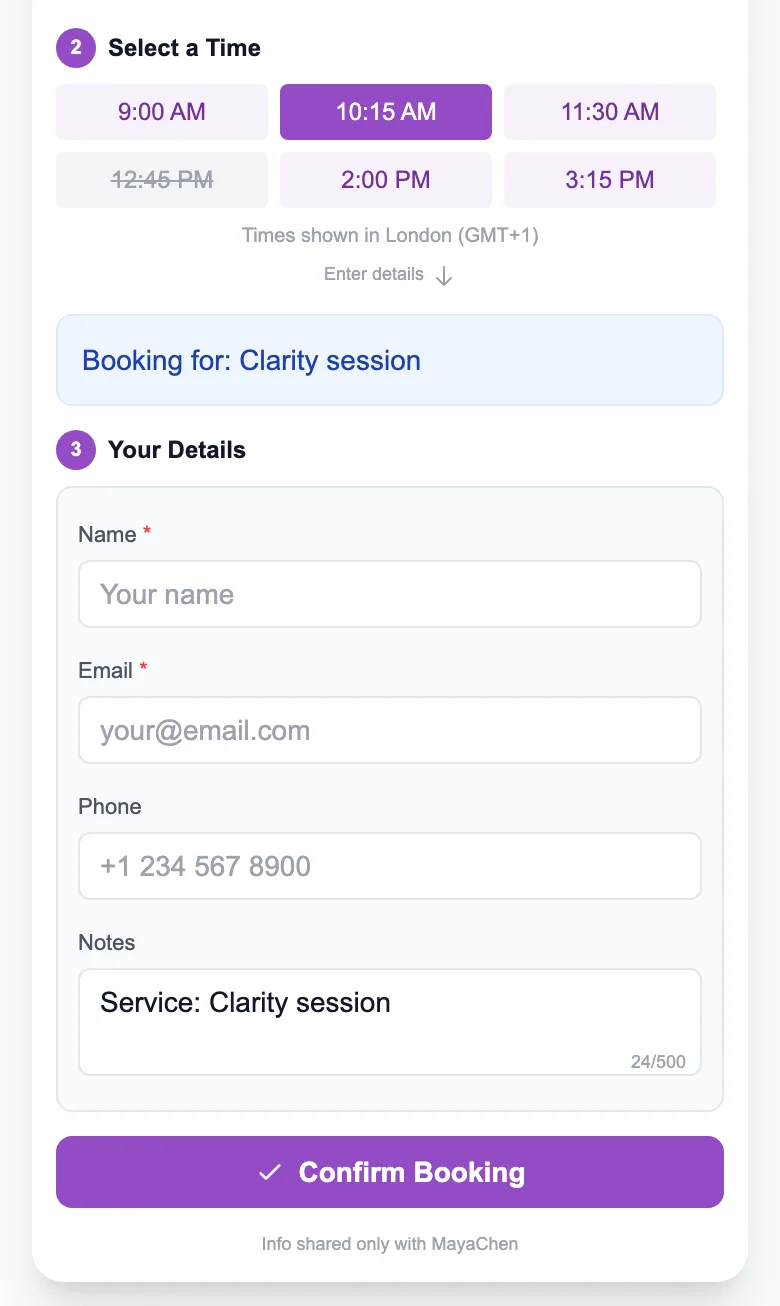
A coach’s link in bio should turn a follower into a booked call. On a free MinglyLink page, clients request a time from your booking calendar, optionally for one of your priced services, and you confirm it; you can sell worksheets or programmes from the same page.
What to put on your page
- Your photo, your name and one line on who you help.
- Your booking calendar first, with your services and prices.
- Worksheets, templates or programmes you sell (you send the files yourself).
- An email sign-up for people who aren’t ready to book yet.
- Your social links and up to 6 videos.
- A contact form for questions.
What it does
- Clients request a time slot on your page, optionally for one of your priced services, and you confirm it. They get an email when they book and when you confirm, cancel or complete the booking; replies go to you.
- You set weekly hours, blocked or custom dates, your time zone, one appointment length (15 to 120 minutes) and a buffer between appointments.
- Sell physical or digital products; you send digital files yourself. Services are booked through your booking calendar.
- Collect email addresses (with CSV export) and messages through a contact form.
Limits
- No automatic reminders, calendar sync, payment at booking or team scheduling yet.
- One appointment length applies to the whole page.
- Not included yet: card payments through MinglyLink, automatic file delivery, stock tracking, shipping rates and order export.
How payments work
There is no payment step at booking: clients pay you directly, however you agree. MinglyLink takes 0% of your sales. Buyers place the order on your page and pay you directly, however you agree: cash on delivery, bank transfer or your own payment link, outside MinglyLink. When card payments through MinglyLink launch, they will carry the card processor’s fee plus a small MinglyLink fee; orders paid to you directly stay at 0%.
Set it up
- Sign up free and claim your page address, ming.ly/yourname.
- In Studio → Settings, turn on Booking Calendar and set your time zone, appointment duration and buffer time.
- In Studio → Bookings, set your weekly hours and block the days you’re away.
- Add your services with prices, and any products, under Links → Showcase.
- Put your ming.ly link in your Instagram, TikTok or LinkedIn profile.
Frequently asked questions
Can clients pay for a session when they book?
Are session reminders sent automatically?
Can I sell programmes or worksheets on the same page?
Is it free?
Every feature is on the one free plan
Links, a shop, orders, booking and an email list on one page.
Set up free booking